

Introduction
It occurs to all of us: one clicks Submit on a large test, and quickly notices that the last three questions were left out or that he/she has uploaded the wrong file. When you’re in need of a giant, red Unsubmit button on your student dashboard, you might have likely noticed that it is missing.
The unsubmit process in Pear Assessment (previously known as Edulastic) is slightly different than in Google Classroom or Canvas. This is how to correct a submitted assignment in 2026.
Is it possible to un submit on Pear Assessment as a Student?
The Brief Answer: No. After a student has clicked on the Submit button and affirmed his decision, the assessment is locked so that it cannot be graded. To “unsubmit,” a teacher must intervention and “Redirect” the assignment back to the student.
Related topic’s: Why Did Edulastic Change to Pear Assessment
How to “Unsubmit” (For Teachers)
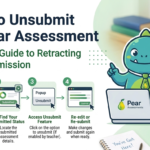
Should a student come to you and inform you that he/she made an error, you can simply resend the assignment back to the student without losing the progress they have already made (or you could ask the student to start all over again). In Pear Assessment, this is referred to as Redirecting.
Related topic’s: Pear Assessment Student Login
In Process: The Redirect Method.
This is the most widespread method of giving a student an opportunity to correct his or her work.
- Open the Live Class Board: Click on your Assignments tab and then on Live Class Board in the particular assessment.
- Choose the Student: Identify the student that must unsubmit. Select their name in the checkbox.
- Click Redirect: Find the Redirect button (typically in the upper right or in the bulk actions menu).
- Setting Configure: A pop-up will be displayed. You can choose to:
- Allow them to view their past answers.
- Allow them to see the ones that they got wrong.
- Adjust the “Close Date” to allow them time to complete.
- Submit Redirect: click the Redirect button and the assignment will be taken off the student submitted list and onto his or her in progress list.
What Are Students to Do?
Students are unable to retract a submission themselves, so they should use the following steps to retrieve their work:
- Don’t Panic: You have saved some data, although it is submitted.
- Message the Teacher: Immediately notify your instructor. You won’t be able to know that you made a mistake unless you inform the teachers because the system will register you as having done so.
- Check the In Progress Tab: When your teacher clicks Redirect, the test will be listed again in the active assignments. You do not always need to begin all over again–you should still have your old answers there.
Common “Unsubmit” Scenarios
| Scenario | Solution |
|---|---|
| Accidental Early Submission | Teacher clicks on Redirect to Individual Students. |
| Technical Glitch/Internet Cut Out | Teacher can “Reopen” or “Redirect” the session. |
| Wrong Test Assigned to Entire Class | Teacher is to Unassign the test on the Live Class Board. |
| Student Wants a Retake | Teacher invokes Redirect and picks remove previous responses (optional). |
Frequently Asked Questions (FAQ)
Will not submitting cancel out my previous score?
In case of a teacher reassessing an assignment, a teacher may retain your previous answers or erase them. In case they retain them, your previous score is put on hold until you re-enter with your corrections.
Why can’t I see the “Redirected” test?
In case your teacher claimed to have returned it, but you cannot find it, you may refresh your browser or visit the “Assignments” tab in particular. The “Dashboard” view also takes time to refresh at times.
Can a teacher “Unsubmit” a test that is already graded?
Yes. Even if a teacher has already assigned a grade, they can still go to the Live Class Board and “Redirect” the test. This will put the test back into action to the student.
Pro-Tip 2026: Take Advantage of the Pause Feature.
To avoid the need to unsubmit in the future, remember that you can Pause a test if you aren’t finished. By hitting the Pause button, you will save your work and be able to leave without actually submitting it to your teacher to grade it.
Are you an instructor who has to automate the retakes or a student who wants to locate a particular In Progress assignment?